Partition loss is one of the most common issues that IT support specialists face when dealing with USB drives and other storage devices. Fortunately, a lost or deleted partition doesn’t usually mean the files on it are lost. What usually happens is the system loses the information that tells it where the partition starts and ends.
This makes the data inaccessible by normal file browsing. One of the most important skills for IT support is the ability to recognize this situation, avoid actions that might overwrite the data, and select the best recovery method.
USB Troubleshooting and Data Recovery as an IT Support Skill
Storage devices rely heavily on partition structures and file systems to organize and access data. When these structures become damaged, Microsoft Windows may no longer recognize the partition, even though the drive still contains the files. IT support professionals frequently deal with the following scenarios, which you should know and detect:
| Cause | What happens | Recovery chances | Notes |
| Accidental deletion | The partition is removed, and the space shows as unallocated | High | The data usually remains intact, so both the partition and files can often be restored |
| File system corruption | The partition exists, but becomes unreadable or appears as RAW | High to medium | Recovery tools can usually access the data even if the file system fails |
| Improper formatting | The partition gets reformatted or set to an incompatible file system | Medium | Quick format keeps data recoverable, full format reduces the chances |
| Damaged partition table | The system loses information about the partition location and size | High | The partition may still exist, but the system cannot detect it properly |
| Physical damage | Hardware components fail (memory chips, controller, etc.) | Low | Software tools rarely help; professional recovery is usually required |
Many partition-related issues result from logical errors rather than physical hardware failure. For IT support specialists, this distinction is important because logical issues often leave the underlying data intact, creating a strong opportunity to recover files or restore the original partition structure. Partition loss, file system corruption, and inaccessible USB drives are among the common IT help desk issues that support teams encounter when assisting end-users with storage device and data access issues.
How to Recover Data from a Deleted Partition
First, you will need to recover data from the flash drive and only then proceed with the actual partition. That way, you will still have your files, even if you are unable to recover the partition. You can always create a new partition on your USB drive and copy these files back. To recover data from a deleted USB partition, you will need a suitable data recovery program, as not every data recovery tool supports a USB drive with a deleted partition.
In my experience, Disk Drill is the best tool for data recovery, as it can recover data from storage devices even if they are corrupt, have a deleted partition, or lack a file system (RAW). It is also very simple to use and has an advanced data recovery algorithm that promises to recover most, if not all, of your data with just a few clicks.
Optionally, I recommend creating a disk image and using it to recover data from your USB drive. A disk image is essentially a soft copy of your USB stick. Building one prevents further data loss and helps protect your corrupt USB drive from the stress of a data recovery scan.
Here is how to recover files using Disk Drill:
- Download Disk Drill and install it (this is an auto-download link https://www.cleverfiles.com/disk-drill-mac.html).
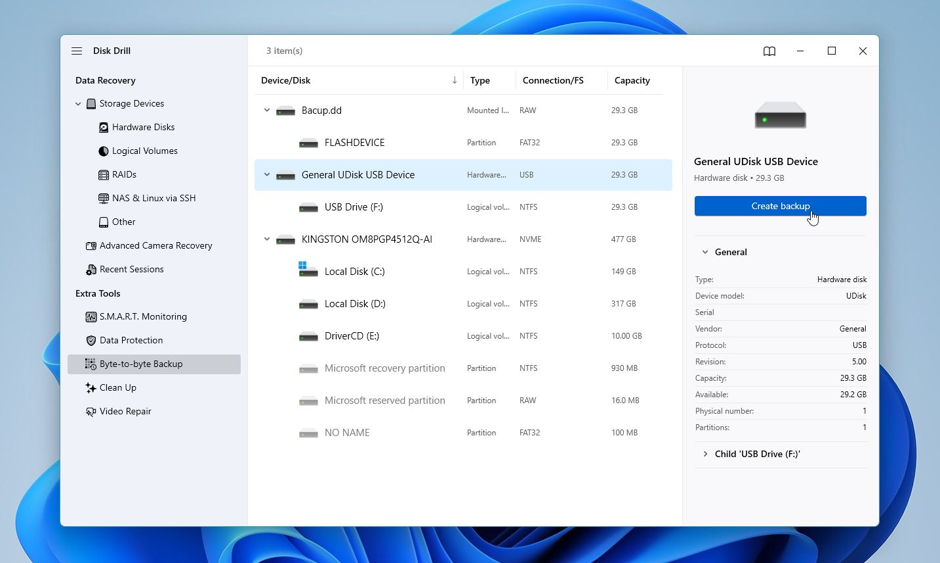
- Open Disk Drill, then click Byte-to-byte Backup under Extra tools.
- Select the USB drive, and click on Create backup.
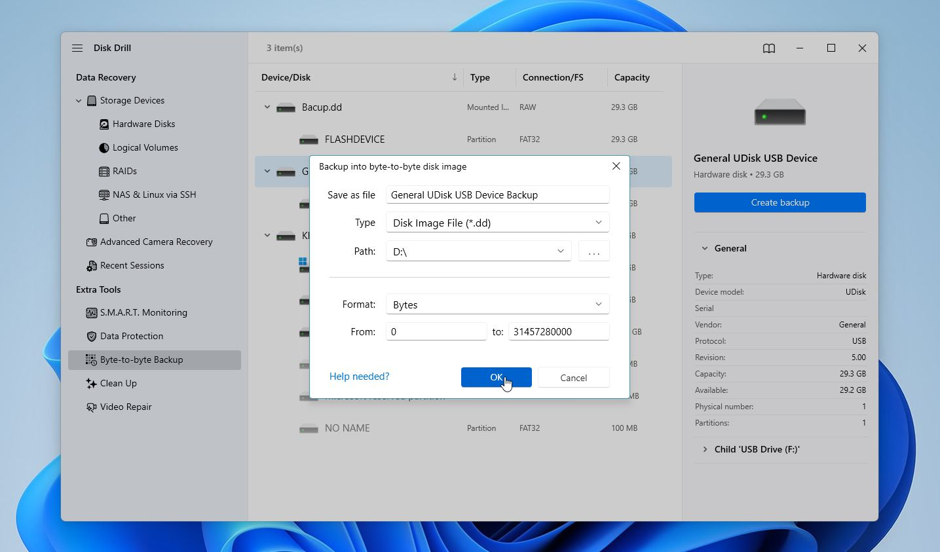
- Use the three dots next to Path to choose a Save location for the disk image. The destination should have enough free space, i.e. at least as much as the USB drive’s total storage capacity. Click OK.
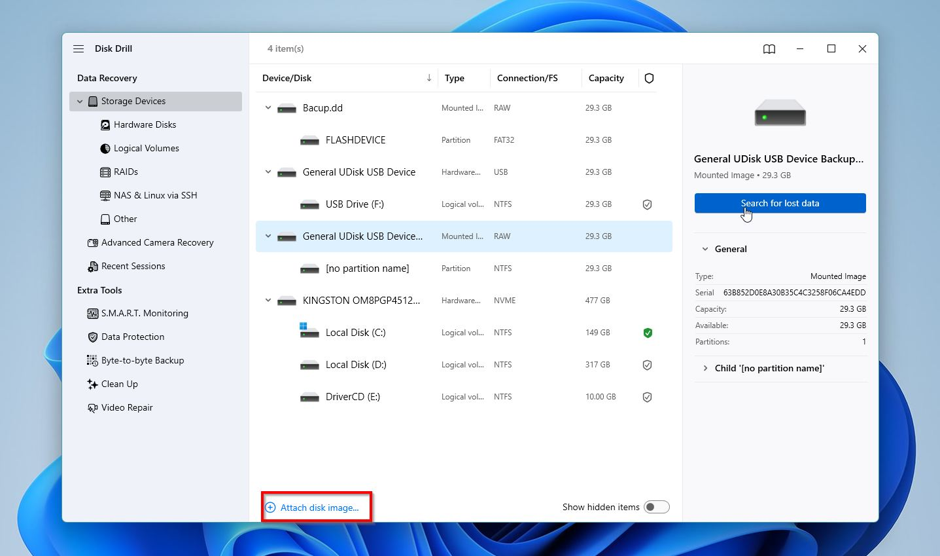
- Go back to Storage devices. Select your USB drive, and click on Search for lost data. If you’re using a disk image, first click on Attach disk image, then find and double-click the disk image. It will show up as a separate drive in Disk Drill. You can then select it and click on Search for lost data.
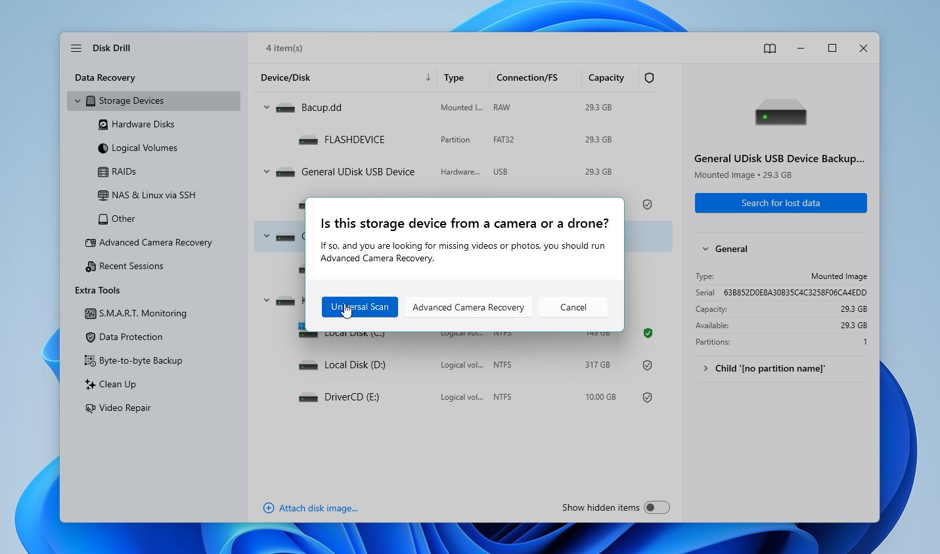
- Disk Drill will then ask you to select Recovery Mode. I recommend starting with the Universal Scan, unless you’re dealing with videos from a camera or a drone, then select Advanced Camera Recovery.
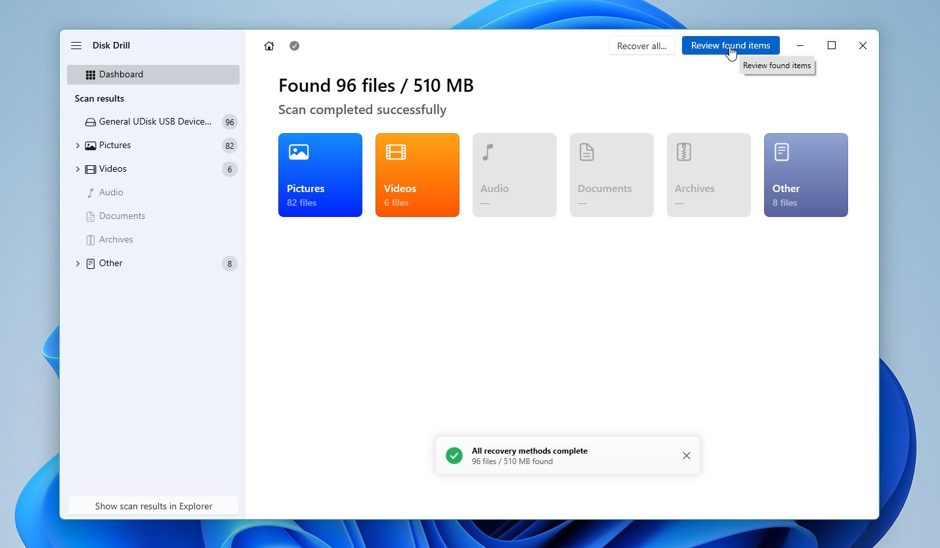
- Click on Review found items to view all recoverable files. You can also filter the results right away by clicking the relevant option (Pictures, Video, Audio, Documents, Archives, or Other). In addition to data recovery, Disk Drill can also find lost partitions and restore them with the file system intact. To do so, click on the required lost partition on the Review Found Items screen.
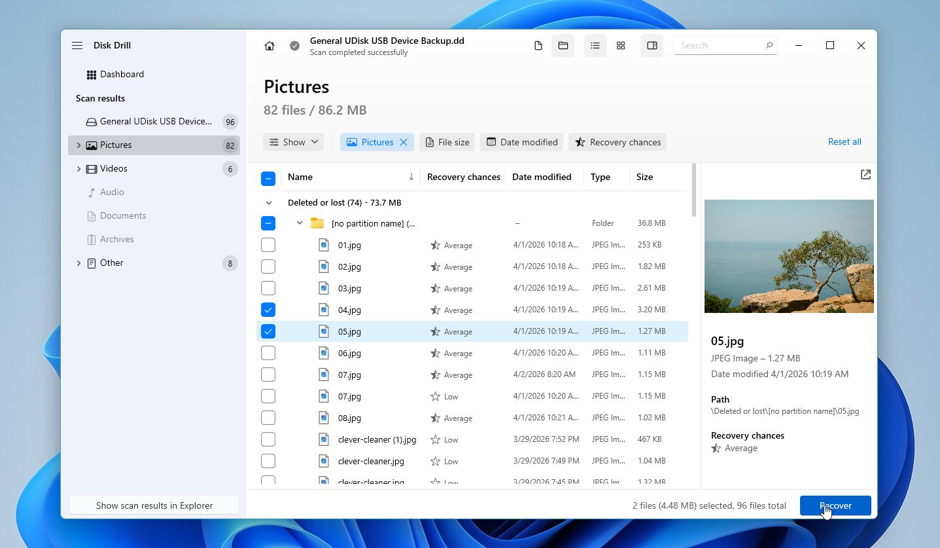
- Expand the Deleted or lost and Reconstructed section to view deleted files that are recoverable. To view files that currently exist on the USB drive, expand the Existing section. Disk Drill will display a preview of the currently selected file, but you can manually preview any file by clicking the eye icon that appears when you hover the cursor over the filename. You can also use filters to narrow down the results. Select the files you wish to recover and click Recover.
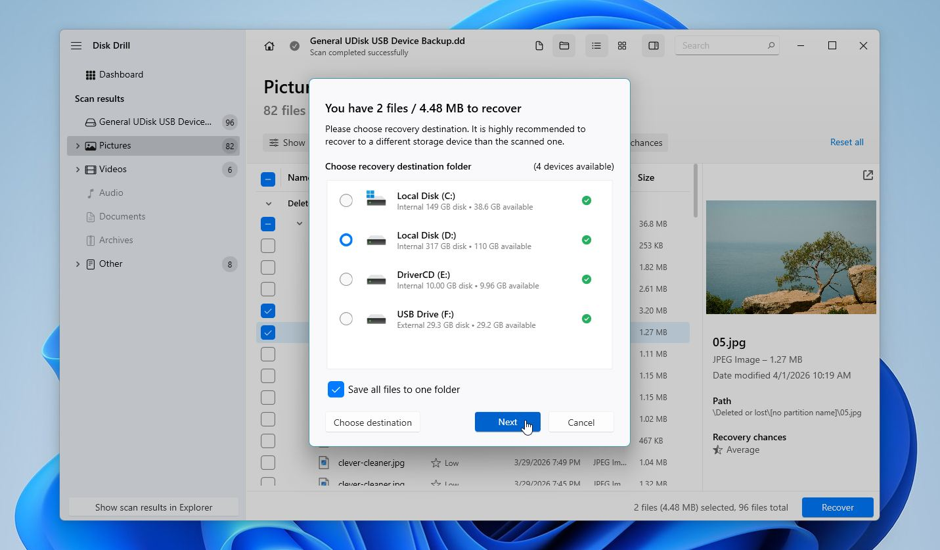
- Choose a recovery destination for the files and click Next. Don’t recover the files to the USB drive because you may need to format it again to create a new partition.
- Disk Drill will recover your files. You can recover up to 100 MB of files for free with this USB recovery software. Once your files are safe, you can proceed to perform USB partition recovery.
3 Ways to Recover a Deleted Partition on a USB Drive
You have three primary options to recover a deleted partition on your USB drive: use a USB partition recovery tool, use CMD to recover it, or use Disk Management to create a new partition.
Let’s take a look at the fixes:
Method 1: Recreate the Deleted Partition Using TestDisk
TestDisk is a powerful partition recovery and repair tool. It can search for lost or deleted partitions and help you recover your data. The only drawback is that it lacks a proper Graphical User Interface (GUI). But don’t worry about that; the steps below will guide you through the entire USB partition recovery process.
Let’s get to it:
- Download TestDisk and extract its contents from the archive.
- You’ll navigate around TestDisk with the arrow keys. Press Enter to confirm your selection.
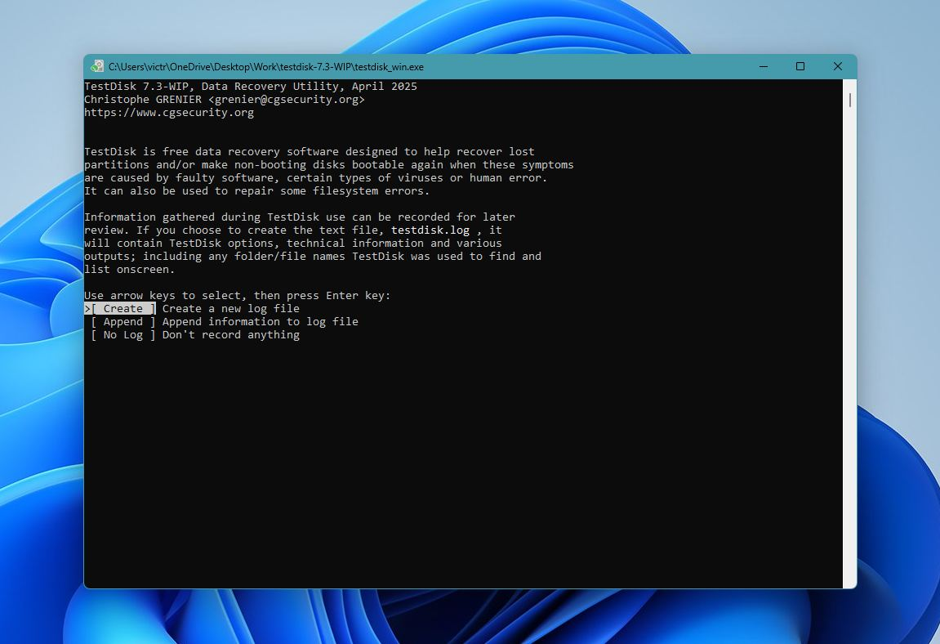
- Decide whether to create a log file. Use the Up and Down arrow keys to highlight an option, then press Enter to select it. You can choose any option you like here.
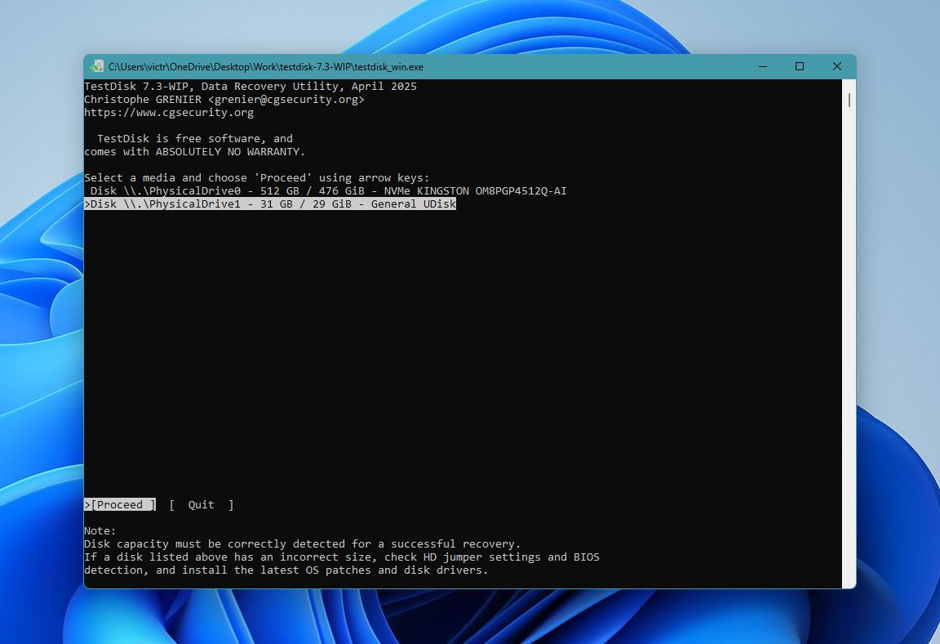
- Highlight the USB drive in the list of storage devices, then select Proceed.
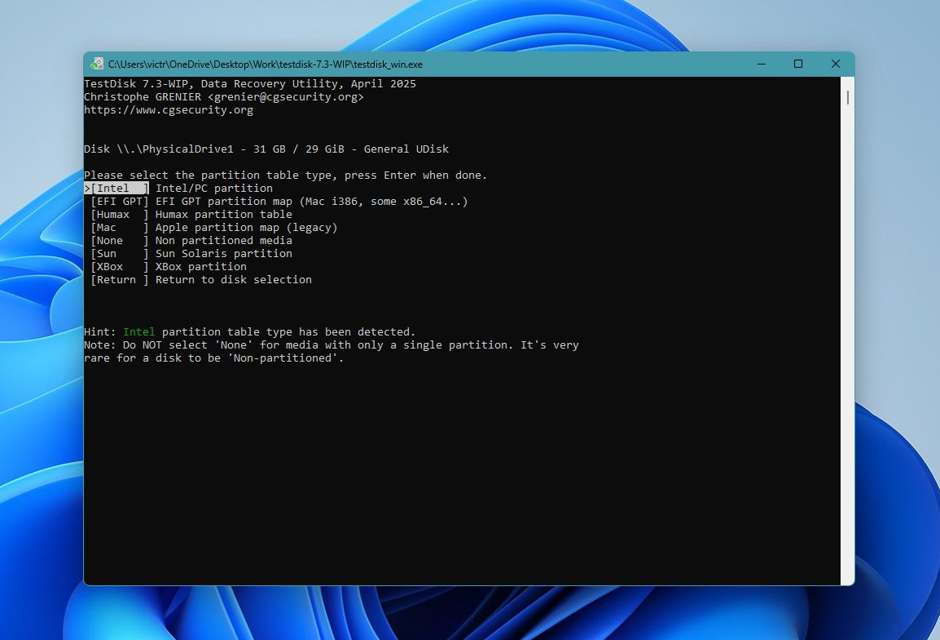
- Select a partition table type. TestDisk autodetects this, so it’s best to leave the selected option as is and press Enter on this screen.
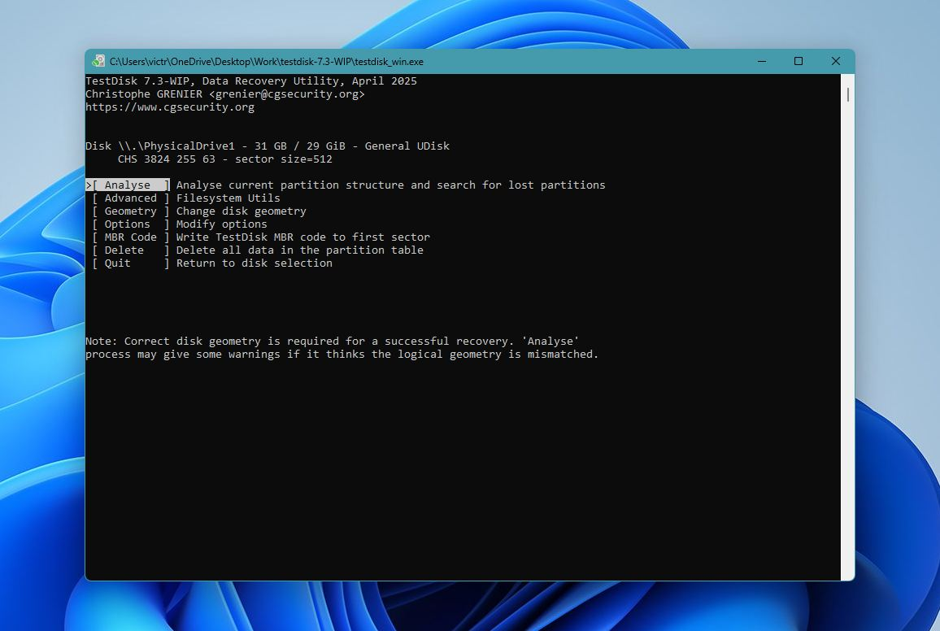
- Select Analyse and press Enter.
- Select Quick Search and press Enter. TestDisk will list the partitions.
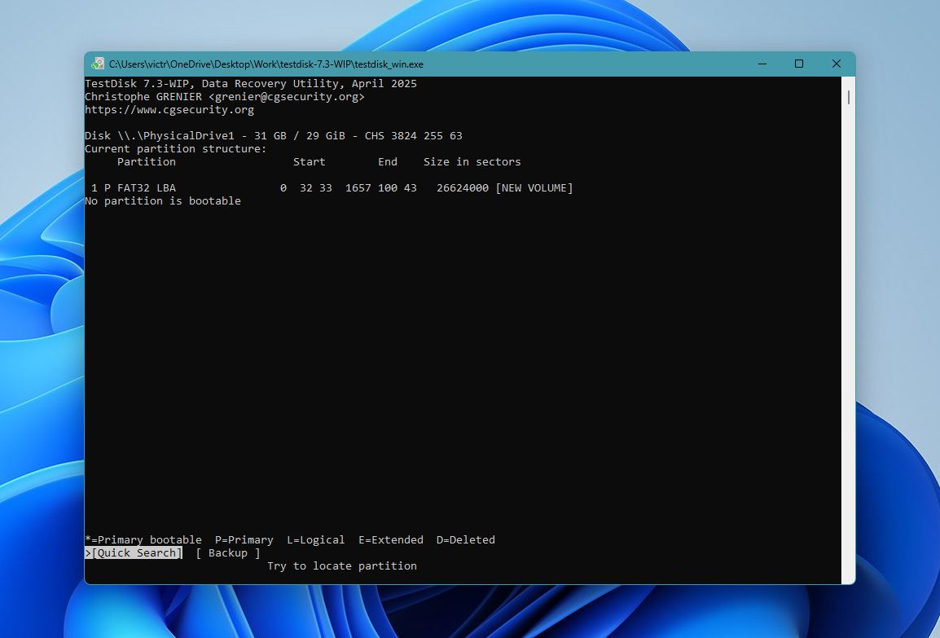
- Highlight the partition of your choice and press P to view its files. If all your files are there, press C to go back.
- The listed partitions will have one of these characters before them: P, D, L, and *, denoting Primary, Deleted, Logical, and Bootable, respectively. The partition you wish to recover will have a D before it, and you need to mark it as P. To do this, select the partition using the Up or Down arrow keys, and press the Left and Right arrow keys to cycle between the P, D, L, and * characters.
- Once the partition has been marked as P, press Enter.
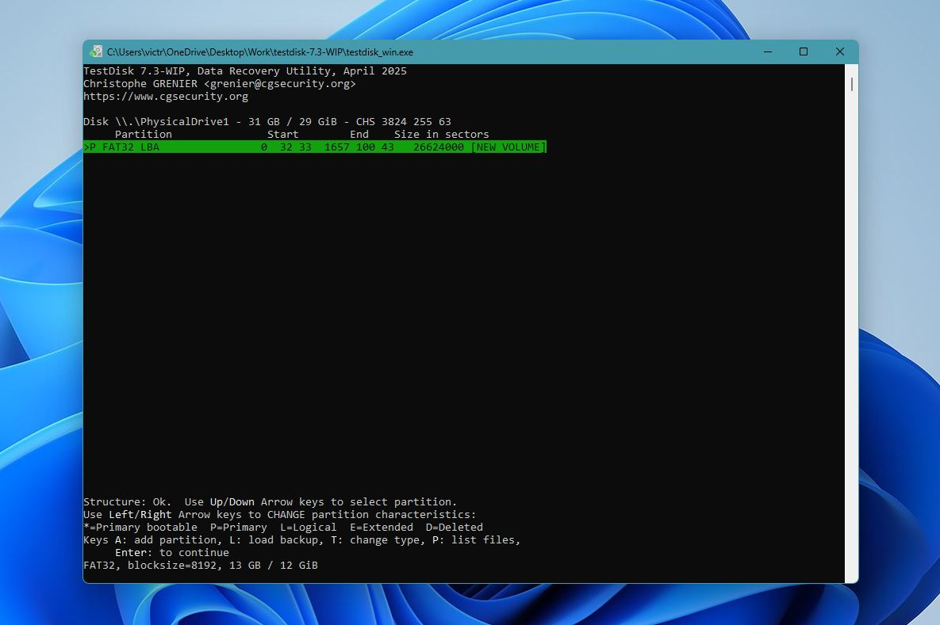
- If you wish to search for more partitions, select the Deeper Search option and press Enter. If not, move to the next step.
- Select the Write option and press Enter.
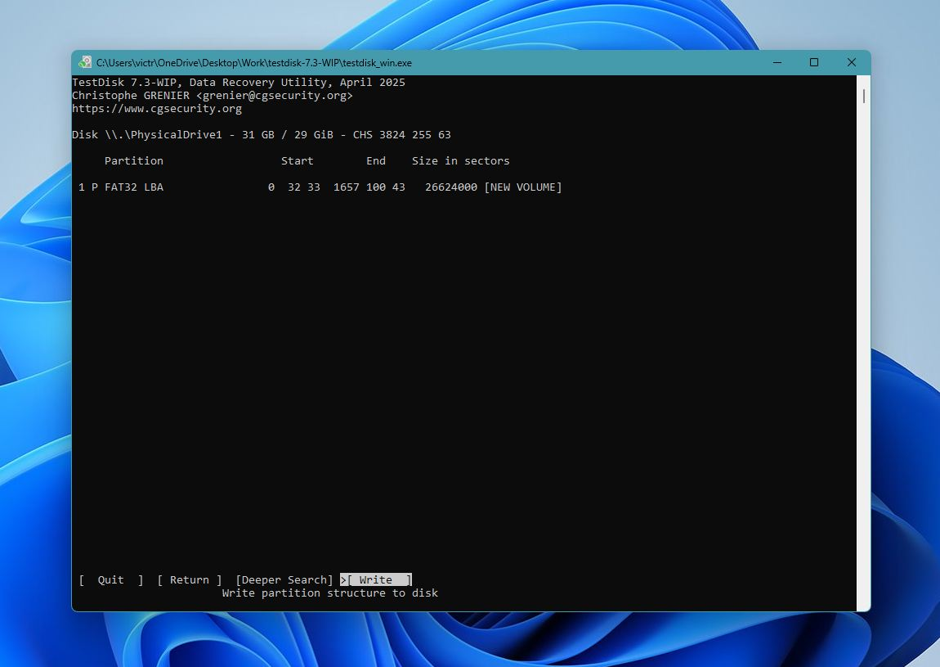
- Press Y on the confirmation prompt. TestDisk will recover the partition. Reboot your PC after this.
Method 2: Recreate the Deleted Partition Using Disk Management
Disk Management is a built-in Microsoft Windows tool for creating and managing partitions on storage devices attached to your Windows PC. With the tool, you can recreate the partition on your USB drive and just copy the data you recovered earlier to the new partition.
Here’s how to use Disk Management to recreate the partition on your USB drive:
- Search for “Disk Management” in Windows Search (Windows Key + S). Click on the Create and format hard disk partitions option from the search results. This will open Disk Management.
- Look for your USB drive in the lower half of the Disk Management window. Right-click on the space labeled as “Unallocated” and choose New Simple Volume.
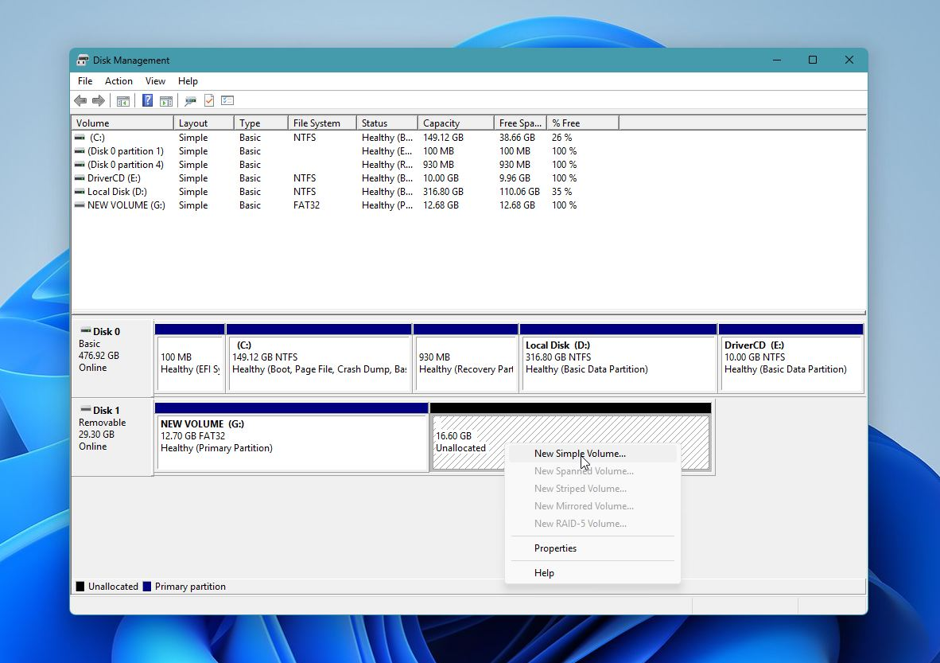
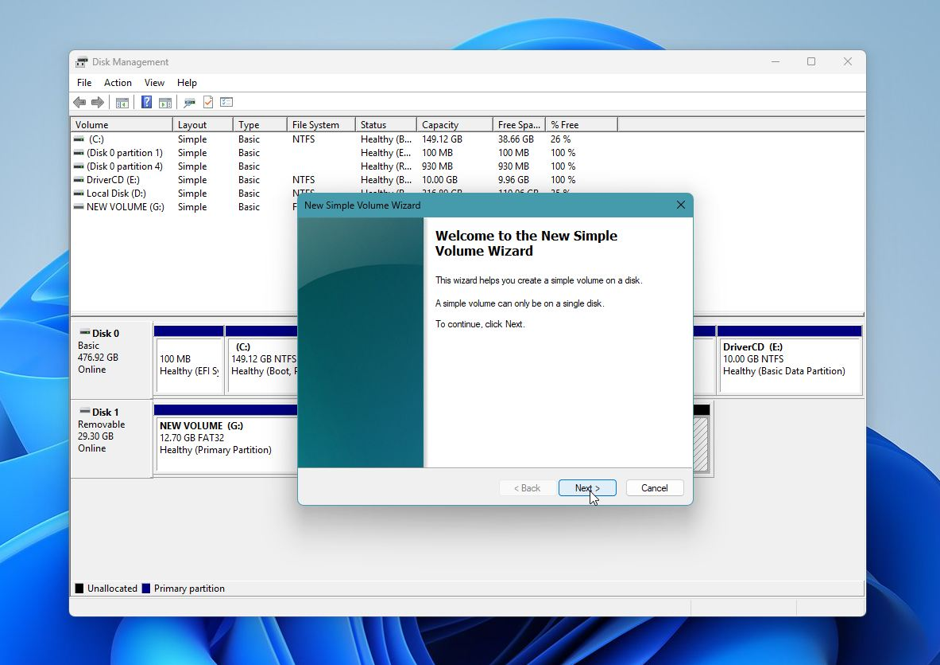
- Click Next on the New Simple Volume Wizard welcome screen.
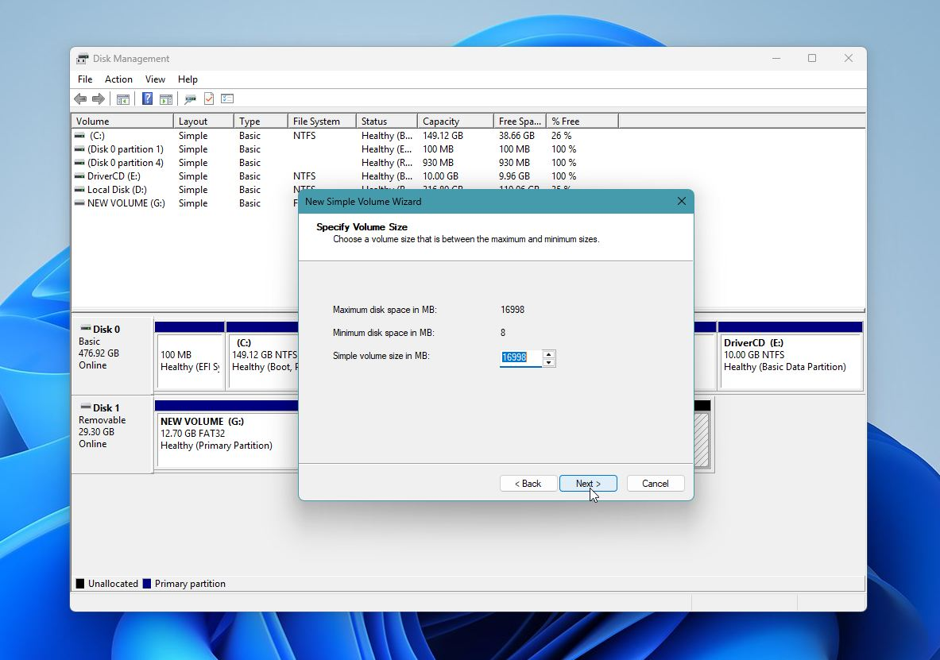
- Choose the partition size using the Simple volume size in MB box. Click on Next.
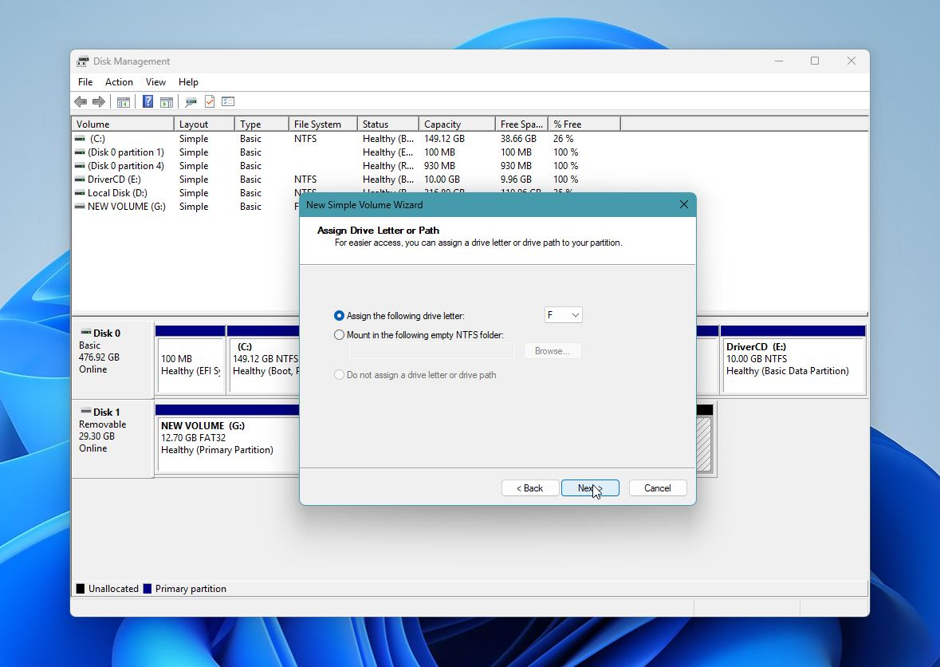
- Select the drive letter you want to assign to the partition, then click Next.
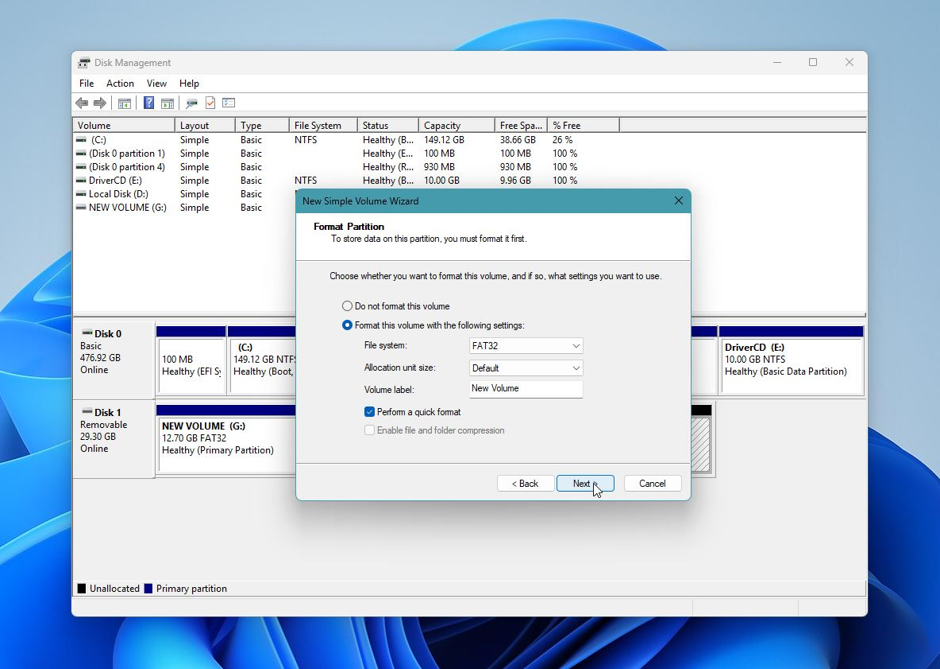
- Make sure the Format this volume with the following settings option is selected. Choose the File System and Volume Label (Name) you wish to assign to the partition and click Next.
- Click on Finish, and Disk Management will create the new partition for you.
- If you want, you can then copy the data you recovered earlier to the newly created partition.
Method 3: Recreate the Deleted Partition Using the Command Prompt (CMD)
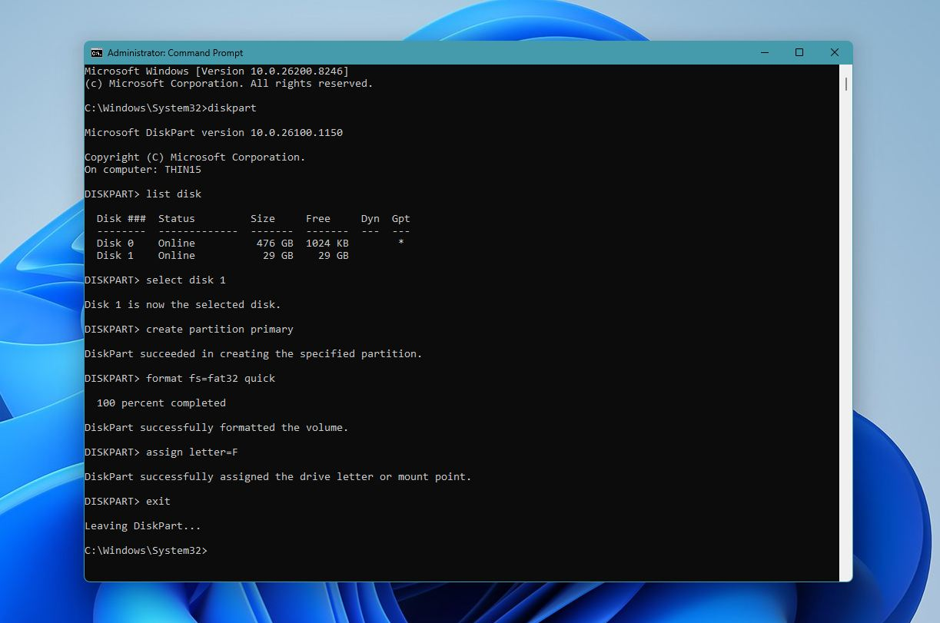
An alternative to Disk Management, the Diskpart command-line tool in Windows also lets you create and manage partitions on your storage drives. It also offers more flexibility and customization. Diskpart can be run using an elevated Command Prompt (CMD), and you can use it to recreate the partition on your USB drive.
Here’s what the process looks like:
- Search for “cmd” in Windows Search (Windows Key + S). From the search results, right-click on Command Prompt > Run as administrator.
- Type diskpart in the Command Prompt console and press Enter.
- Type list disk and press Enter to view all the storage disks connected to your PC.
- Look for your USB drive, then type select disk X and press Enter. Replace X with the disk number of the USB drive. In this case, it is Disk 1, so I typed select disk 1.
- Type create partition primary and press Enter. This will create a partition on the USB drive.
- To begin using the partition for storing your files, you need to format it. You can do this in Diskpart, Disk Management, and Windows Explorer. To format the partition using Diskpart, type format fs=fat32 quick after the create partition primary command, then press Enter. This command will quick format the USB partition to the FAT32 file system. You can choose another file system as well.
- Type assign letter=X and press Enter to make the drive visible in File Explorer (replace X with your preferred drive letter).
- Type exit and press Enter to close the DiskPart utility.
Note: Did you forget to recover data from your USB drive before using this method? Don’t worry, you can recover data from a formatted partition as long as it wasn’t a full format, i.e. you used the quick parameter in Diskpart or selected the Perform a quick format option in Disk Management and Windows Explorer.
How to Prevent Partition Loss in the Future
Eventually, if you use the USB drive enough, the memory cells will wear out. This is because memory cells can be written to or read from only a limited number of times. Over time, this can cause issues such as data corruption or bad sectors, especially on heavily used or lower-quality drives. These issues could affect the file system, leading to partition issues.
But this kind of wear usually happens gradually, slowly over time. From my experience, partition loss is mostly caused by external factors or human error, such as unsafe removal or interrupted write operations.
Which means that it can be prevented with a handful of simple rules:
Eject the USB drive properly
Always use the Safely Remove Hardware option before unplugging the drive to avoid interrupting active read or write operations.
Choose a compatible file system
Windows and macOS use different file systems, so pick one that works with your setup. If you’re going to be using the drive on both systems, exFAT is usually the most practical choice.
Run regular antivirus scans
Malware can corrupt files or damage the file system, especially if the drive is used across multiple devices.
Back up your data
Backups remain the most reliable protection, since recovery does not always return everything intact. Save copies of important files on another drive or in cloud storage so you’re not dependent on a single USB device.
Never expose the drive to heat, moisture, or physical stress
Hardware damage can make recovery extremely difficult, if not impossible.
Do not disconnect the drive or power the system off…
When files are being copied from the drive; such actions can result in file system corruption and partition issues.
Key Deleted Partition Recovery Takeaways
When handling a deleted USB partition and data recovery, consider these main points:
- Never forget that deleting a partition does not mean immediate data erasure. Files normally stay on the drive until something replaces them.
- Data recovery should always be the priority if the files are important. It’s always safer to recover files before you try to rebuild or format the partition to prevent permanent loss.
- Recovery chances depend on the cause. Accidental deletion and corruption can often be recovered from, but physical damage rarely is.
- Disk imaging adds safety. A byte-to-byte backup protects your data and reduces stress on a failing USB drive during recovery.
Deleted Partition FAQs
Deleting a USB partition usually removes the partition information rather than the files themselves. The operating system can no longer locate the data, causing the space to appear as unallocated. Until new data overwrites the original content, there is often a good chance of recovery.
Yes. In many cases, files can be recovered from a deleted USB partition using specialist data recovery software. Recovery is most successful when you stop using the USB drive immediately to avoid overwriting the existing data.
Yes. Recovering your files first is considered best practice. Recreating or formatting a partition before recovering important data can reduce the likelihood of successful file recovery.
Common causes include accidental partition deletion, file system corruption, damaged partition tables, improper formatting, malware, unsafe removal of the USB drive, and, less commonly, physical hardware failure.
Microsoft Windows includes built-in tools such as Disk Management and DiskPart that can recreate a partition, but they generally cannot restore deleted files. If your data is important, use a dedicated recovery tool before recreating the partition.
Logical damage affects the file system or partition information while the hardware remains functional. Physical damage involves failed memory chips or controllers and usually requires specialist data recovery services rather than software solutions.
A USB drive may appear as RAW when its file system becomes corrupted or unreadable. Although Windows cannot access the files normally, recovery software can often still recover the data.
A partition table stores information about where partitions begin and end on a storage device. If it becomes damaged or deleted, Microsoft Windows may no longer recognize the partition even though the data is still present.
A quick format often leaves the original data recoverable until it is overwritten. A full format is much more likely to permanently erase the data, making recovery significantly more difficult.
Disk imaging creates a sector-by-sector copy of a USB drive. Recovering data from the image rather than the original device reduces the risk of further damage and preserves the drive’s current state during recovery.
For drives shared between Microsoft Windows and macOS, exFAT is generally the most compatible file system. It supports large files and works across both operating systems without requiring additional software.
IT support professionals can minimize partition issues by encouraging end-users to safely eject USB drives, maintain regular backups, scan removable media for malware, avoid interrupting file transfers, and replace aging storage devices before they fail.
Yes. Diagnosing partition issues, distinguishing logical issues from hardware failures, selecting appropriate recovery methods, and preventing data loss are valuable skills for IT support analysts and IT service desk professionals.
If the USB drive shows signs of physical damage, such as clicking sounds, overheating, intermittent detection, or complete failure to power on, you should avoid further use and consult a professional data recovery service. Continued attempts may worsen the damage.
Yes. In many cases, a deleted USB partition can be recovered because the files remain on the drive until they are overwritten. Using data recovery software as soon as possible and avoiding further writes to the USB drive significantly improves the chances of successful recovery.

Jeff Hume
For the past four years, Jeff has been writing about the latest in tech and artificial intelligence. A NYU graduate, he is passionate about exploring how innovation shapes our world.